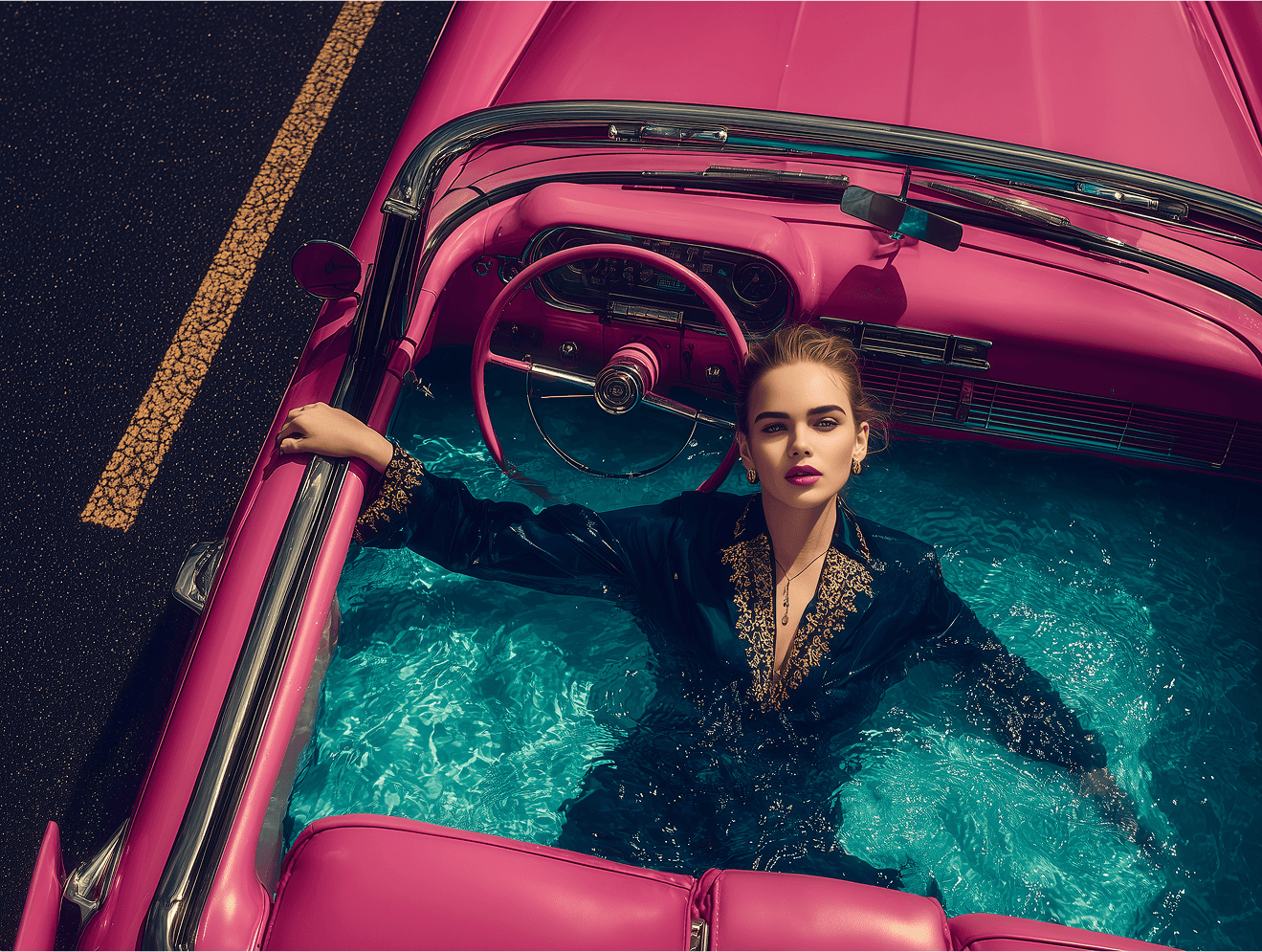
High-Fashion Christmas Campaign Workflow
Base Image Creation — Artistic Model
You can start with any AI model as your foundation. However, if the goal is to produce high-end visuals suitable for luxury or global brands, I personally recommend using the Artistic model — it delivers superior results in terms of composition, lighting, and overall editorial quality.
Prompt used:
“five fashion models on a deserted New York street, sitting and posing on oversized Christmas gift boxes in bold contrasting colors red, white, gold and black, with two giant glossy Nutcracker soldiers on both sides, cinematic composition the central woman in a red dress swings a heavy sledgehammer toward the cracked asphalt, dynamic movement, dramatic afternoon sunlight, ultra-realistic 8K detail, shot on ARRI Alexa 65, 85mm lens, shallow depth of field, high-fashion editorial style, VOGUE magazine lighting, elegant and surreal atmosphere”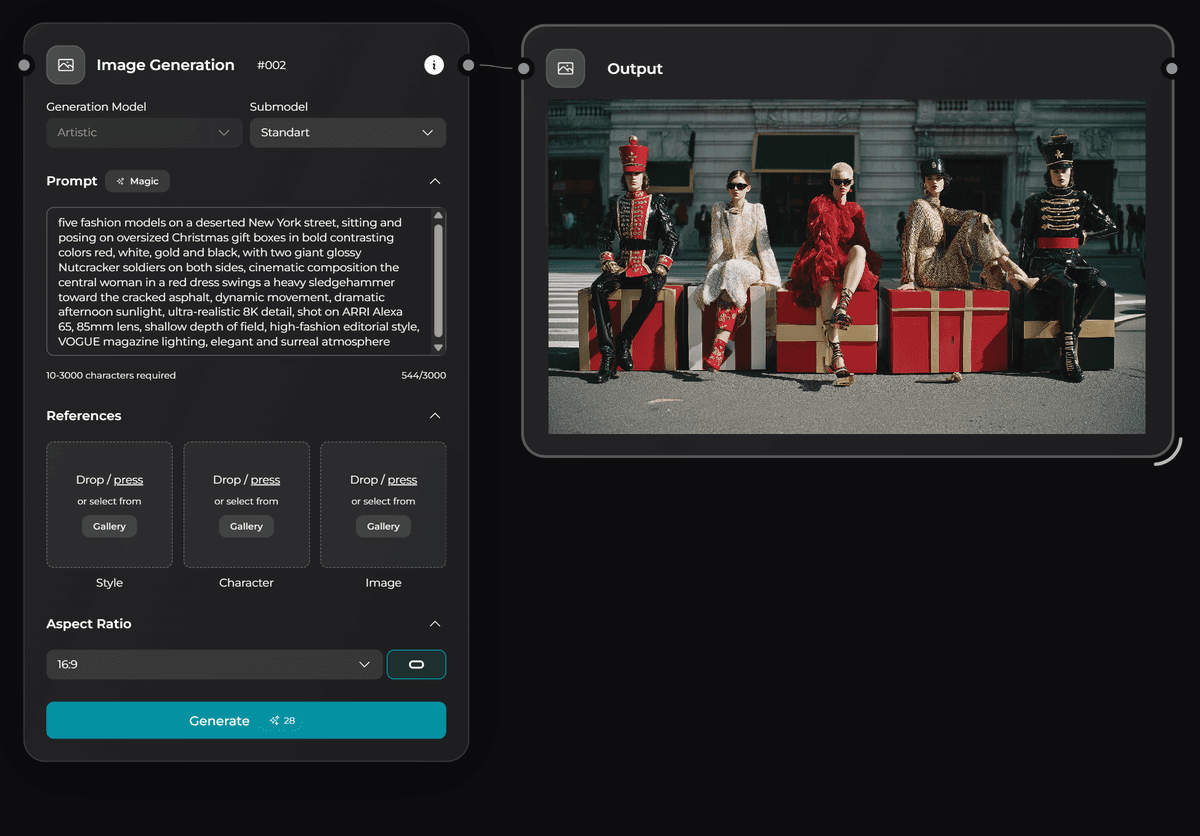
Refining and Replacing Details — Nano Banana
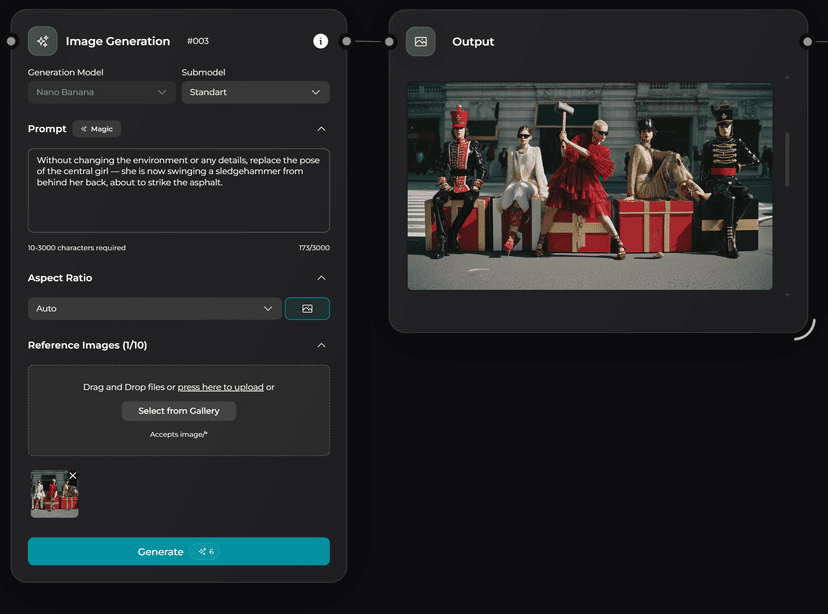
For the second stage I used Nano Banana — perfect for replacing elements such as characters, poses, or camera angles while keeping the environment and lighting consistent.
“Without changing the environment or any details, replace the pose of the central girl — she is now swinging a sledgehammer from behind her back, about to strike the asphalt”Why this step now? Because it's often difficult to achieve the perfect composition in one pass. Adjusting the pose afterward saves hundreds of unnecessary generations.
“Add a few small pieces of broken asphalt and some dust beneath the girl in the red dress, as if from previous hammer strikes”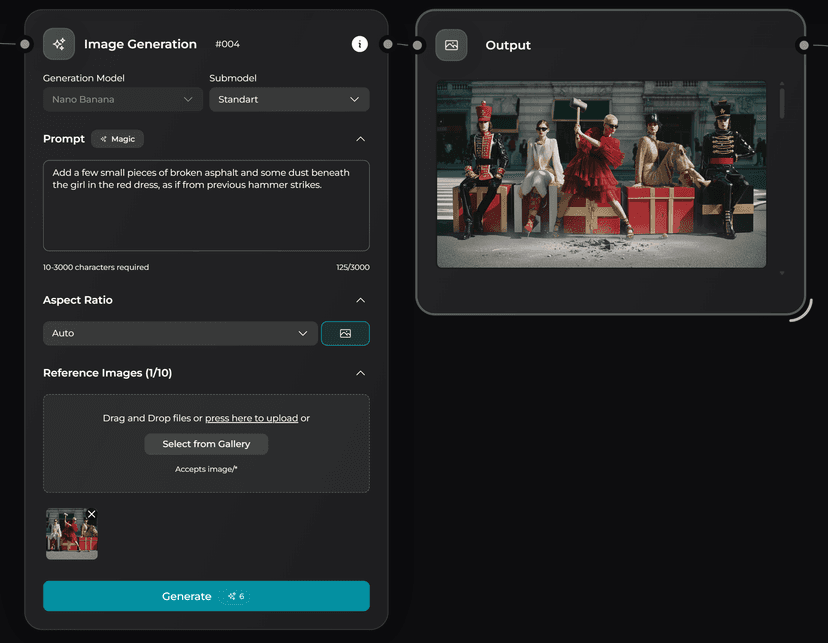
“Without altering the environment or other details, replace the two people on both sides with toy Nutcracker figures from the second image — they are sitting in the same positions instead of the people”Nutcracker generation prompt:
“two large, beautifully crafted Nutcracker soldiers with glossy lacquered surfaces, gold trims and ornate uniforms in red, navy blue and white, detailed faces with expressive eyes, white beards and tall hats with metallic decorations luxurious Christmas toy soldiers, hyperrealistic, finely painted wood texture, elegant and festive appearance, reminiscent of high-end holiday decor”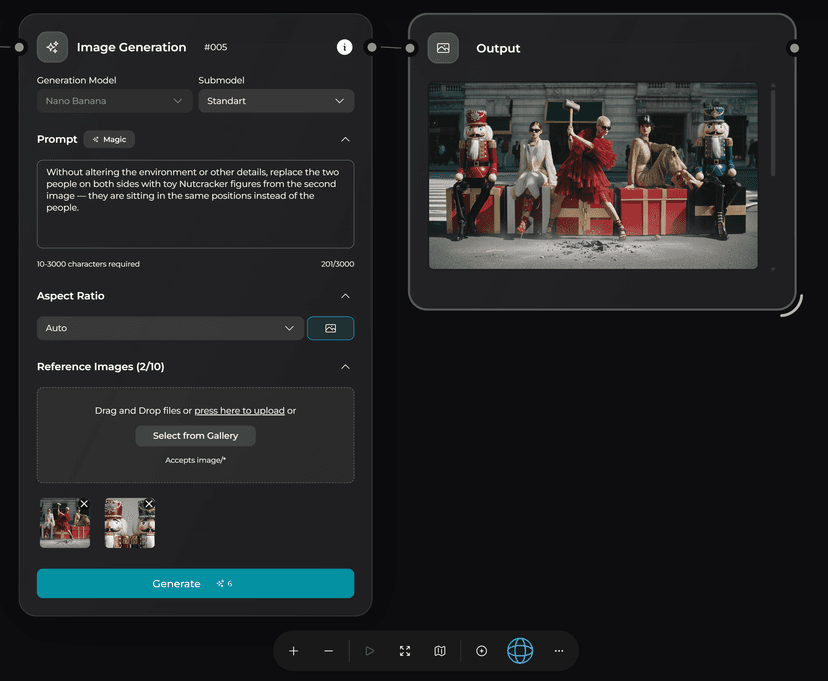
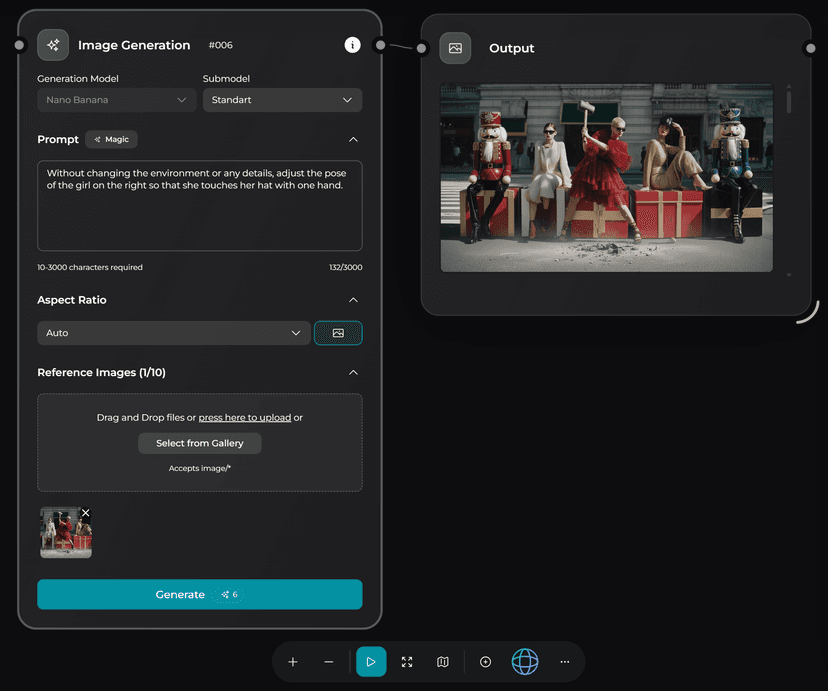
“Without changing the environment or any details, adjust the pose of the girl on the right so that she touches her hat with one hand”Workflow advantage: This approach lets you fix small imperfections (like hand shape or gesture) without leaving the AI workflow or switching to Photoshop — saving hours of manual retouching.
“Without changing the scene or composition, add a silver Porsche 911 in the background, behind the people, wrapped with a large golden gift bow”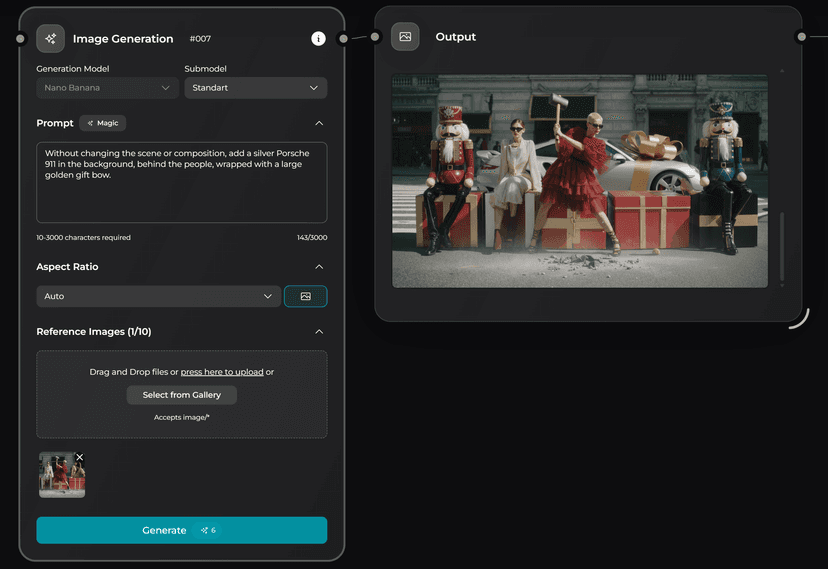
Upscaling — Topaz Upscale
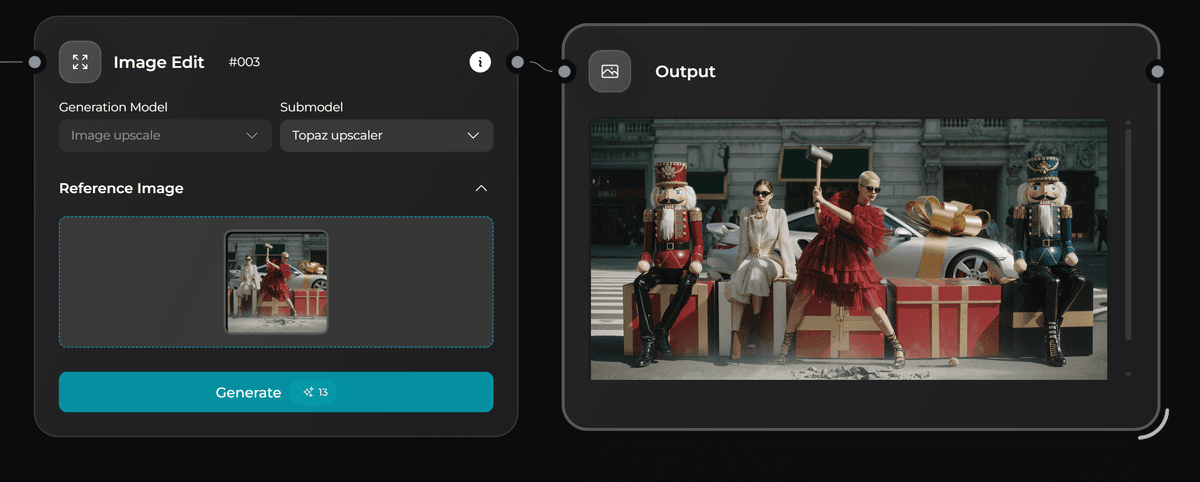
All generated materials were upscaled using Topaz Upscale to preserve fine textures and cinematic clarity.
- Maintains sharp details in fabrics and textures
- Preserves the cinematic quality of the lighting
- Ensures print-ready resolution for luxury campaigns
- Retains color accuracy for brand consistency
Animation — VEO 3.1
All motion sequences were created using VEO 3.1. Below are the example prompts used for dynamic animation.
“Static tripod shot with subtle handheld micro-shake. Foreground in sharp focus, background softly blurred. In the center, the woman in a red layered tulle dress strikes the asphalt with a sledgehammer six slow, measured times; small dust puffs and tiny pebbles jump and settle, cracks grow slightly each hit. The two side models remain perfectly still, only a very light breeze moves hair and fabric. The giant Nutcracker soldiers on far left and right sit rigid, very slowly turning their heads inward toward each other over the whole clip (≈10° total). Background pedestrians stroll slowly in soft bokeh. No camera movement other than micro-shake; no subject repositioning; fashion editorial look, warm afternoon light, high-end color grade”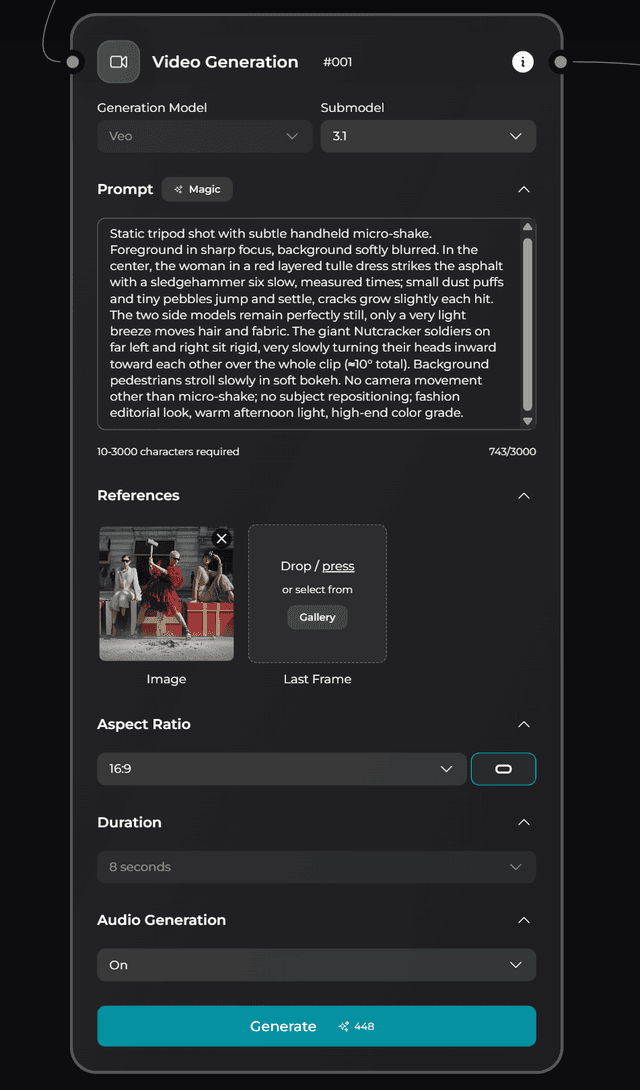
“The camera is static, with a subtle handheld micro-shake. The girl in the center strikes the asphalt with a heavy sledgehammer six times, each hit raising small clouds of dust and scattered pebbles. On the third strike, the model sitting on one side loses balance from the vibration, suddenly bounces off the gift box and flies upward out of the frame, as if thrown by an unseen force. The two giant Nutcracker soldiers slowly turn their glossy heads toward each other, exchanging a brief, mechanical glance. On the final sixth hit, a silver car wrapped with a huge golden bow suddenly falls from the sky, crashing behind them with a loud metallic impact. A distortion ripple passes through the air as dust bursts upward from under the car. The girl in red remains in the center, perfectly composed, continuing to swing the sledgehammer calmly and rhythmically, unaffected by the chaos around her”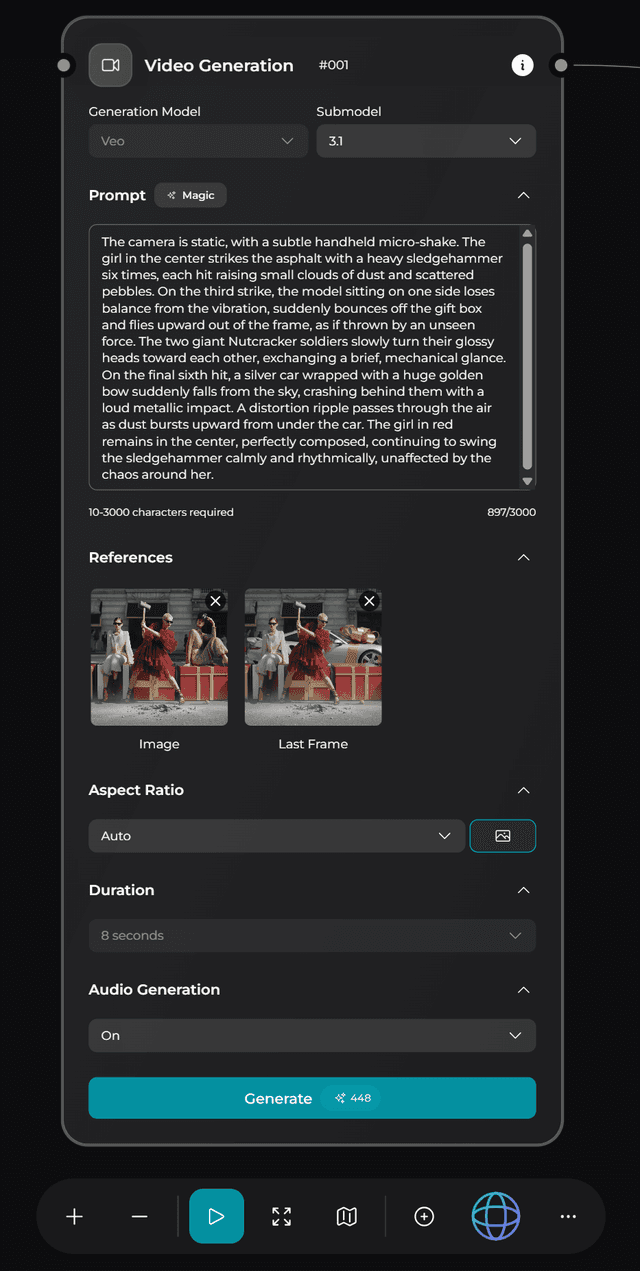
“Slow cinematic zoom-in on the girl in the red layered tulle dress. She lifts the sledgehammer and rests it on her shoulder with calm confidence. Gentle breeze moves her hair and fabric. Sunlight reflects off her dark sunglasses, showing faint reflections of the city around. Warm afternoon light, shallow depth of field, elegant fashion editorial tone”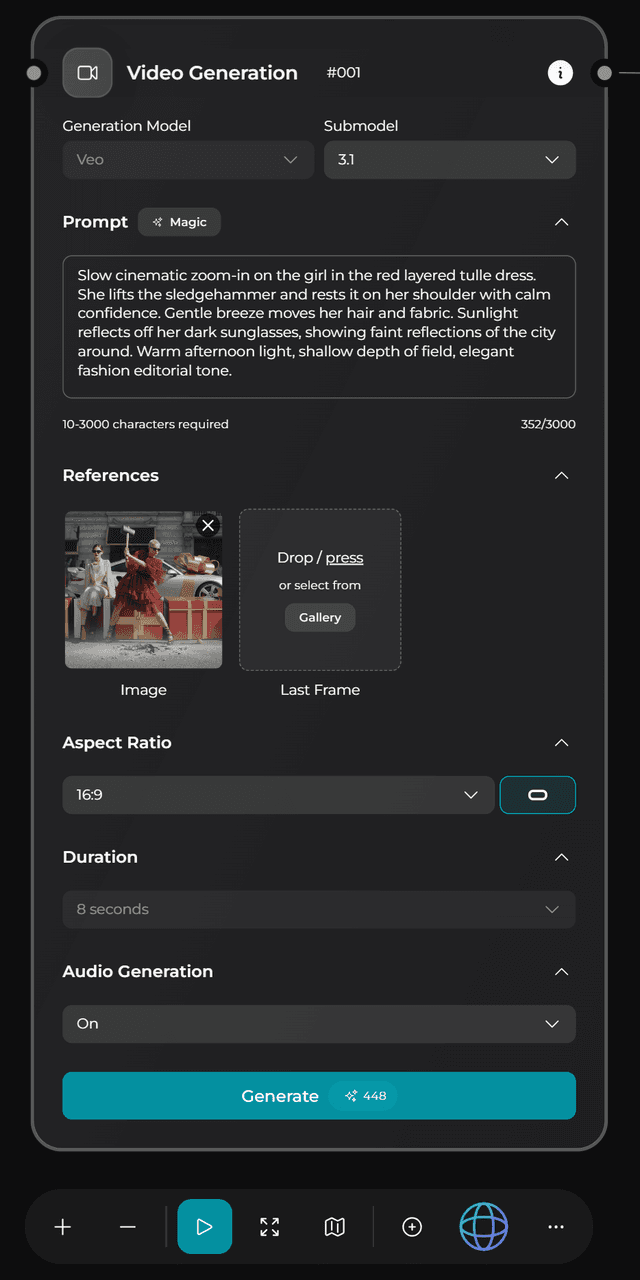
Editing, Color, and Sound Design
Final color correction, keyframe animation, and sound design can be done in any video editor — from CapCut to Adobe Premiere Pro. The key technique is movement through keyframes within the viewport — you can easily recreate the effect shown above in any timeline-based editor.
- Color grading for luxury brand aesthetics
- Keyframe animation for dynamic camera movements
- Sound design to enhance the surreal atmosphere
- Export in multiple formats for different platforms