Effect: Dissolve
Step 1
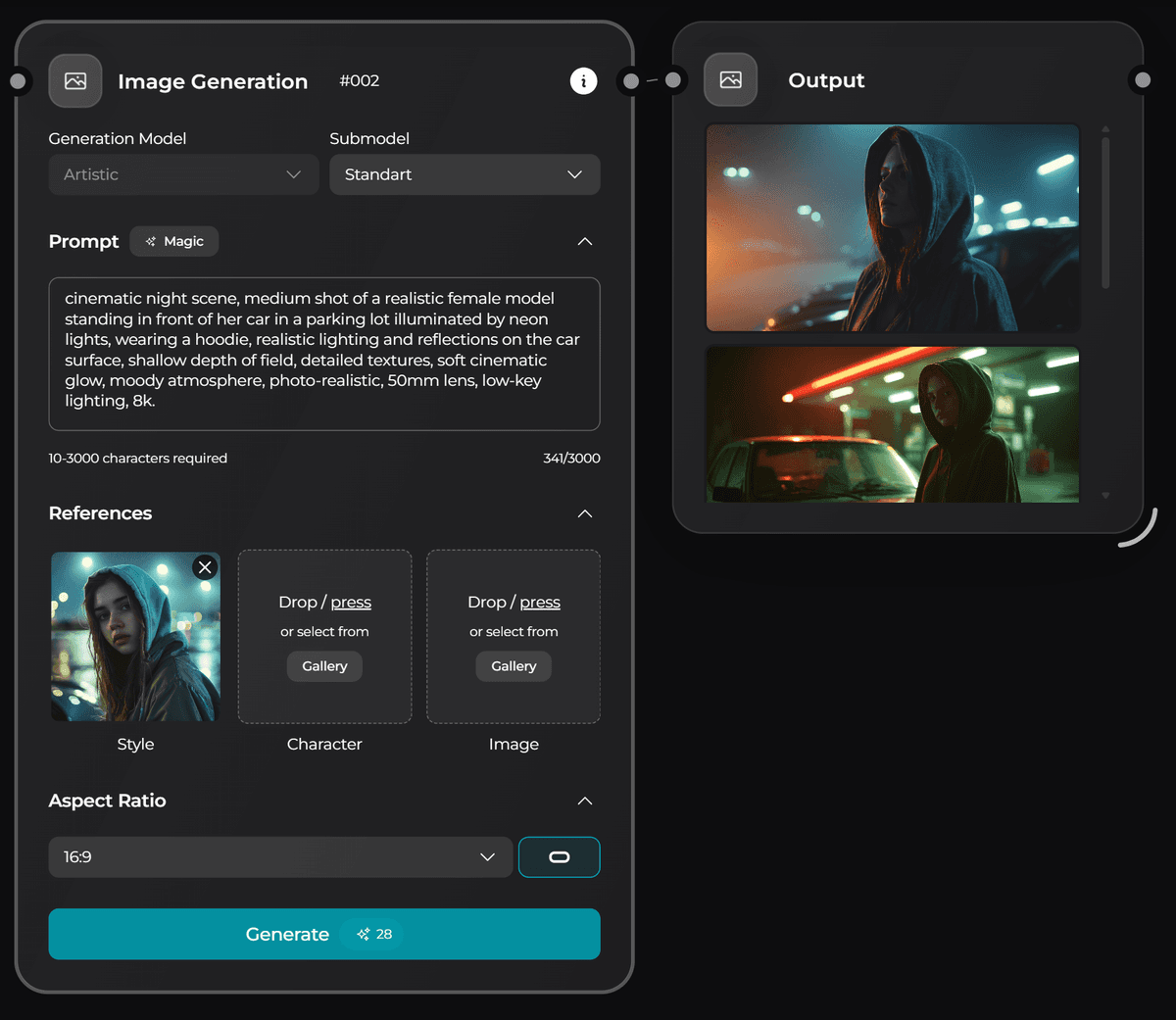
Artistic Model — image generation
Create the base image with your character using the following prompt:
“cinematic night scene, medium shot of a realistic female model standing in front of her car in a parking lot illuminated by neon lights, wearing a hoodie, realistic lighting and reflections on the car surface, shallow depth of field, detailed textures, soft cinematic glow, moody atmosphere, photo-realistic, 50mm lens, low-key lighting, 8k.”Note: You can attach a reference image or visual style example during generation. This helps the model more accurately capture the mood and aesthetic of your idea.
Step 2
Nano Banana — remove the character
Use the result from the Artistic Model as a reference.
Prompt example:
“remove the girl in the foreground without changing the environment”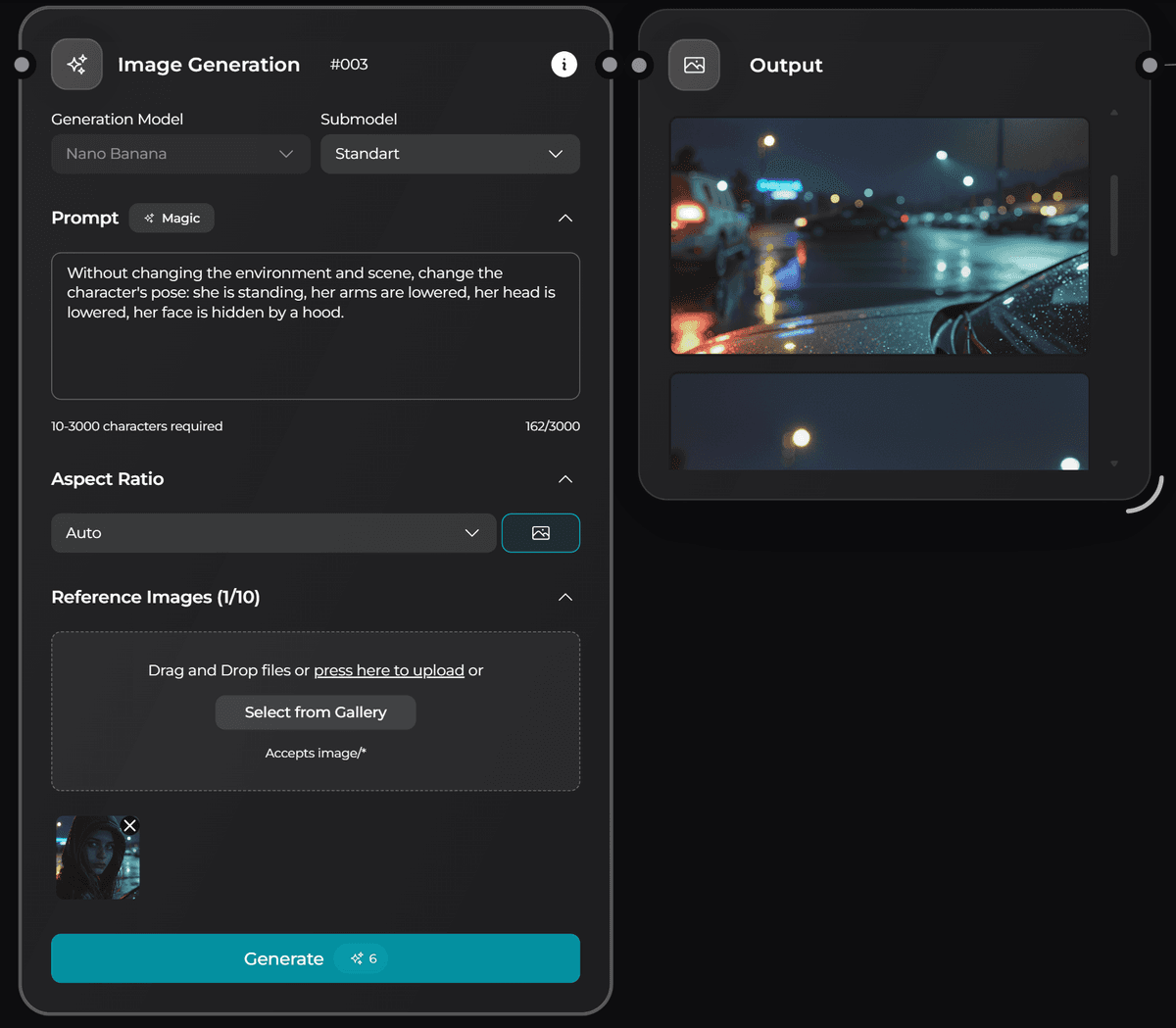
Step 3
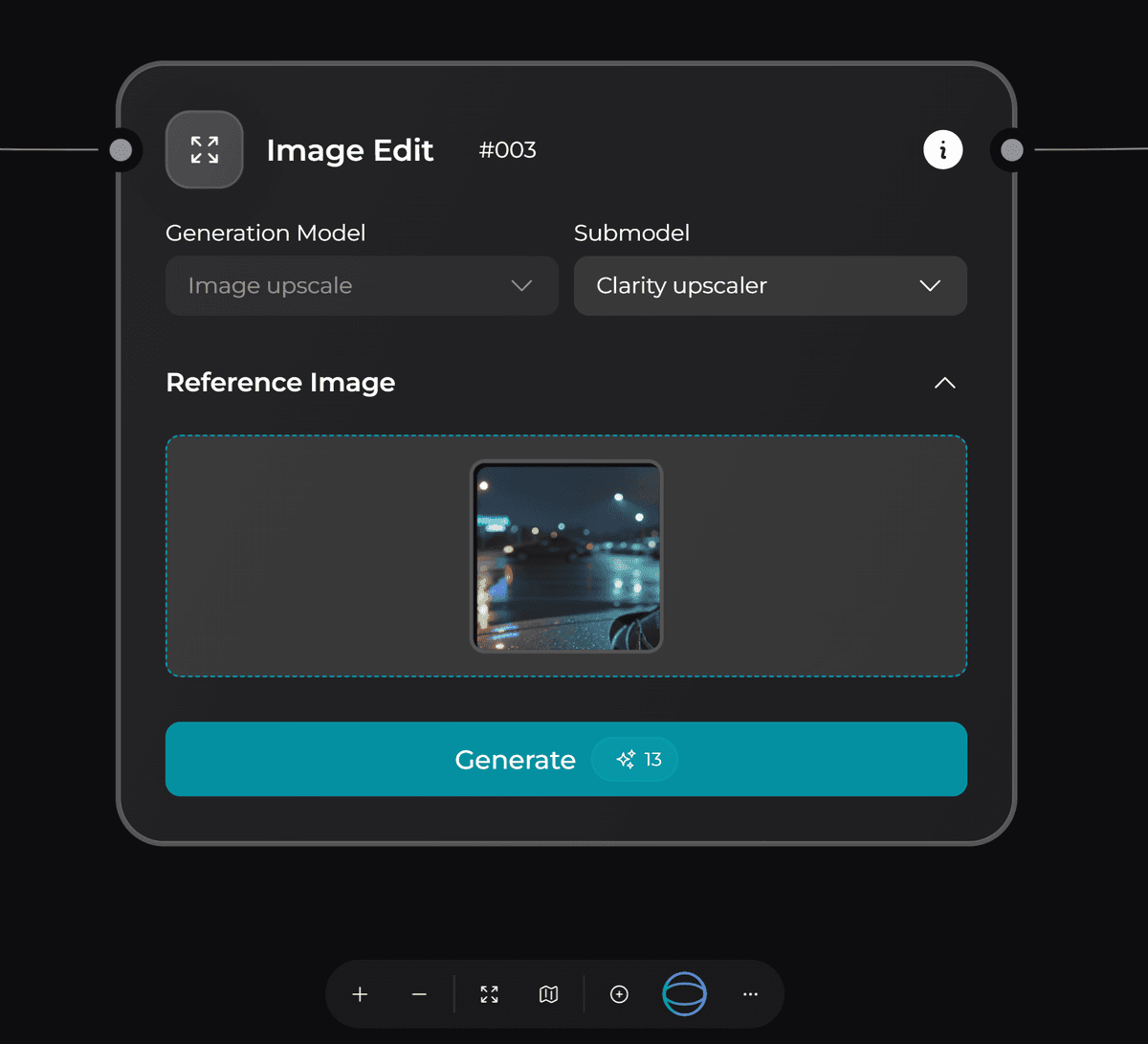
Upscale
Upscale both images to ensure production-ready quality level and go to the next step: video generation
Step 4
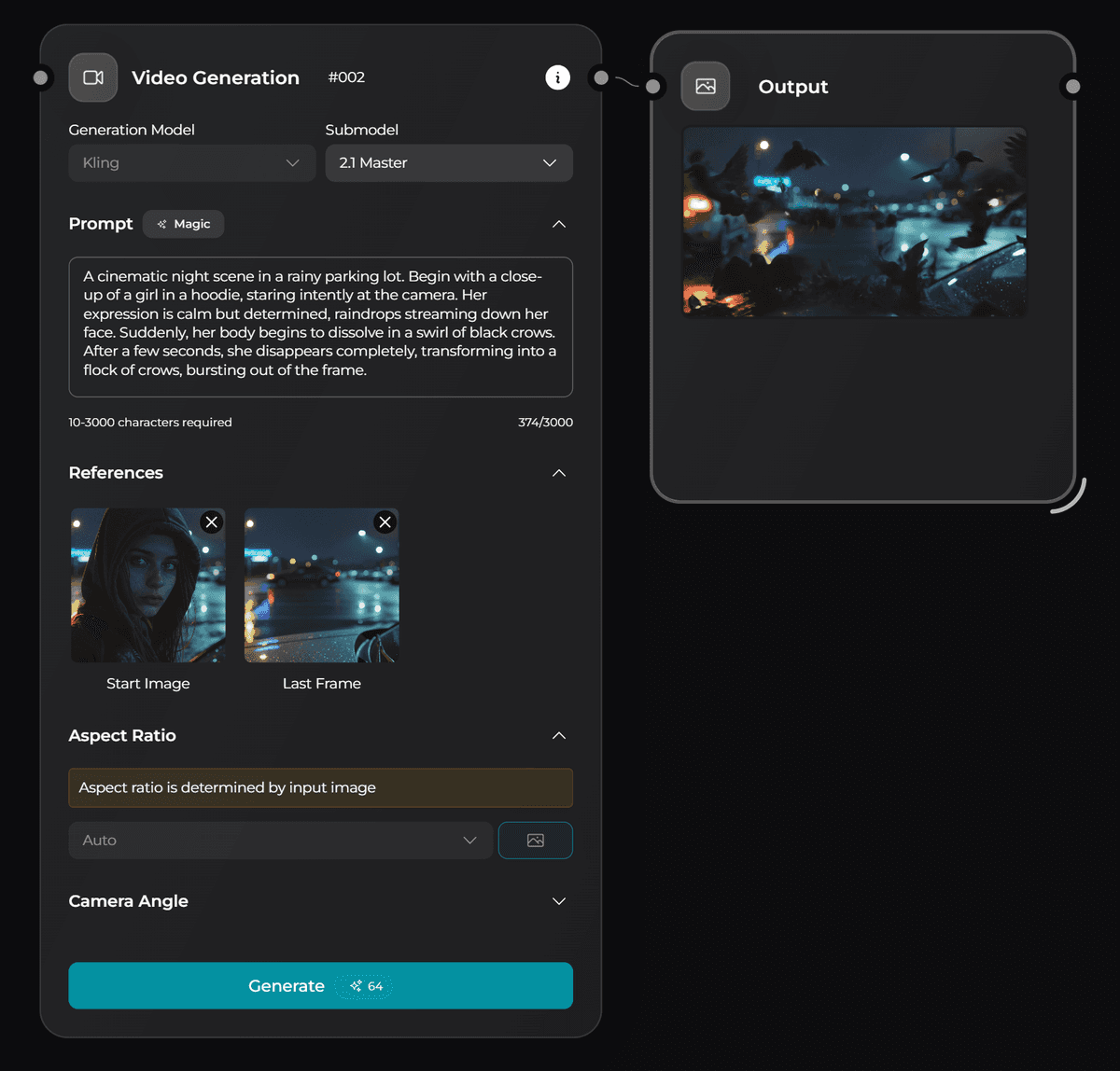
Kling 2.1 Master — video generation
Use:
- Frame 1: image with the character
- Frame 2: image without the character
Prompt example:
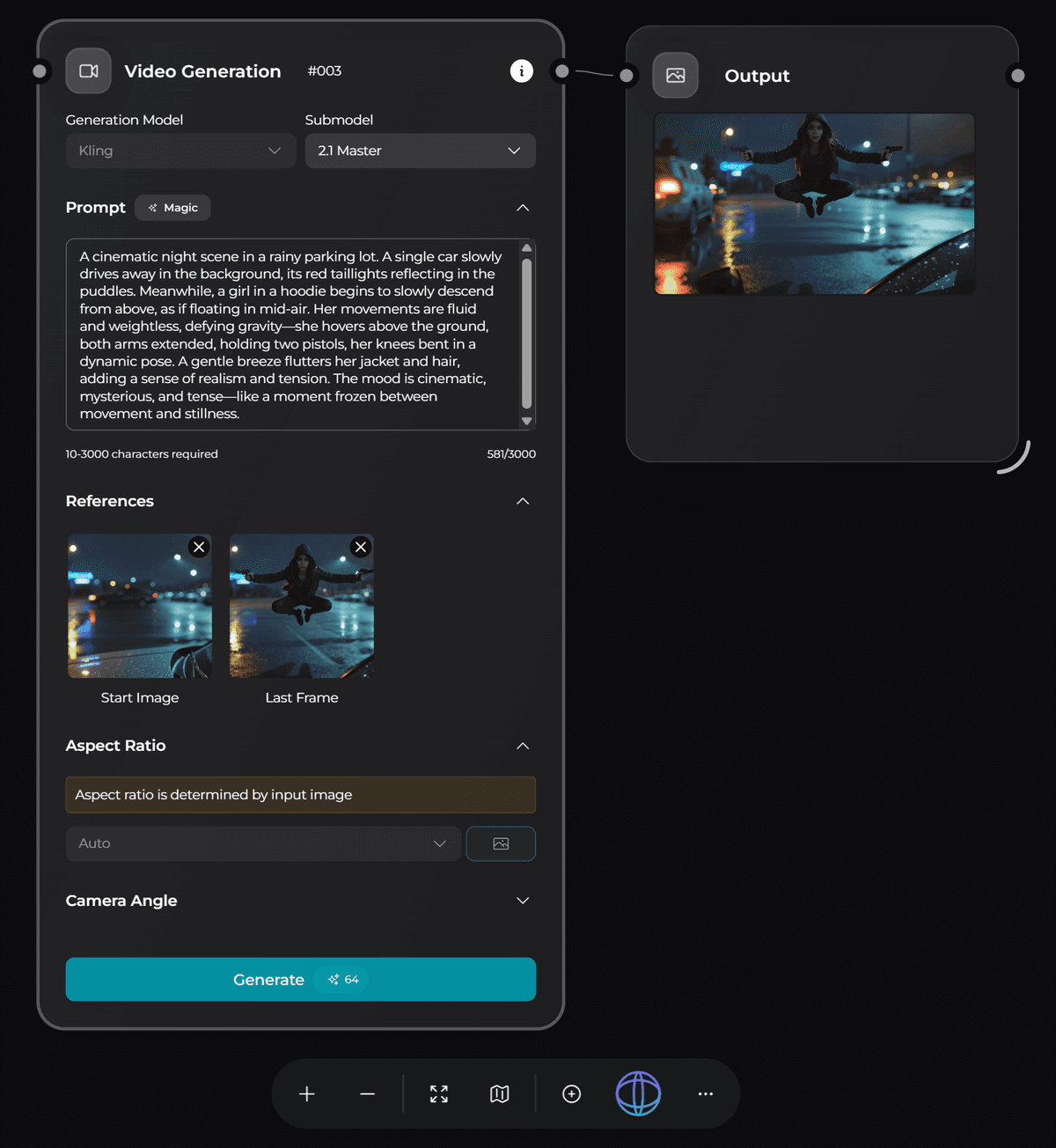
“A cinematic night scene in a rainy parking lot. Begin with a close-up of a girl in a hoodie, staring intently at the camera. Her expression is calm but determined, raindrops streaming down her face. Suddenly, her body begins to dissolve in a swirl of black crows. After a few seconds, she disappears completely, transforming into a flock of crows, bursting out of the frame.”Note: You can use any prompt to create your own unique transitions. Dissolve effects work best when using two keyframes — one with the subject and one without — both pre-processed with Nano Banana.
Effect: Appear
Step 1
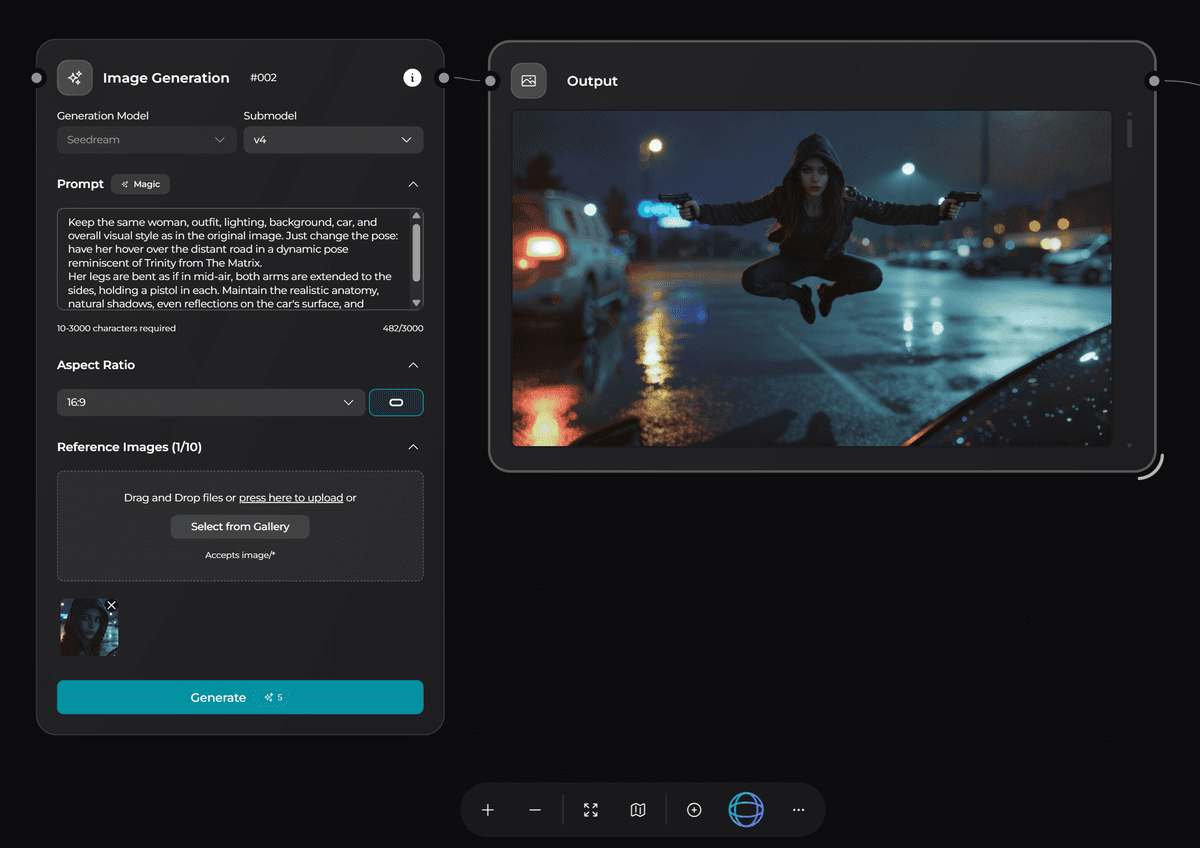
Seedream V4 — generate a new pose
Use the image from Artistic Model (with the character) as a reference.
Prompt example:
“Keep the same woman, outfit, lighting, background, car, and overall visual style as in the original image. Just change the pose: have her hover over the distant road in a dynamic pose reminiscent of Trinity from The Matrix. Her legs are bent as if in mid-air, both arms are extended to the sides, holding a pistol in each. Maintain the realistic anatomy, natural shadows, even reflections on the car's surface, and cinematic lighting. Same angle, ultra-realistic detail, 4K quality.”Note: You can also try generating this pose using Nano Banana and compare which result fits your idea better.
Step 2
Upscale
Do upscaling only if the image was generated in Nano Banana.
Seedream V4 produces high-resolution results by default, so additional upscaling is usually not required.
Step 3
Kling 2.1 Master — create the appearance effect
Use:
- Frame 1: image without the character
- Frame 2: image with the character
Prompt example:
“A cinematic night scene in a rainy parking lot. A single car slowly drives away in the background, its red taillights reflecting in the puddles. Meanwhile, a girl in a hoodie begins to slowly descend from above, as if floating in mid-air. Her movements are fluid and weightless, defying gravity—she hovers above the ground, both arms extended, holding two pistols, her knees bent in a dynamic pose. A gentle breeze flutters her jacket and hair, adding a sense of realism and tension. The mood is cinematic, mysterious, and tense—like a moment frozen between movement and stillness.”